
-
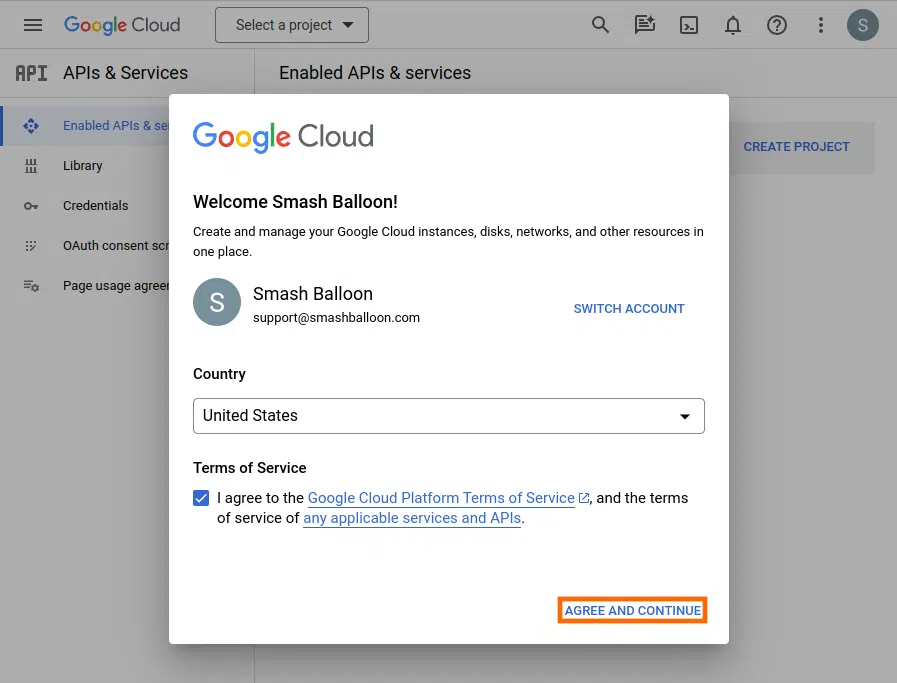
- Go to console.developers.google.com/apis, if this is your first time using the Google API site, you’ll be asked to agree to the Terms of Service.
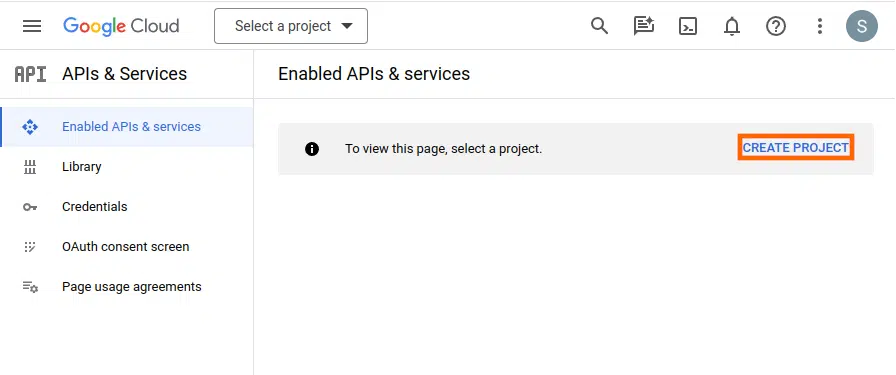
- Create a project by clicking the CREATE PROJECT button.
- After giving your project a name, click on the CREATE button.

- Important: You’ll need to enable your API Key for making YouTube API requests. Visit this page to do so.

- Navigate to the Credentials page and then select CREATE CREDENTIALS. The type of key needed for this plugin is an API Key. Select this option.<

- Copy the API Key in the pop-up window. You’ll need this key when configuring the WordPress plugin.

- Navigate to your WordPress site’s admin dashboard and the YouTube Feed > Settings. Enter the API key in the text field. Save your changes.

- Let Ammi know that you've added the API Key.
- Go to console.developers.google.com/apis, if this is your first time using the Google API site, you’ll be asked to agree to the Terms of Service.
Connect Your YouTube & Your New Website

Updated on April 13, 2026
1 min read
- View as Markdown Open this page as plain Markdown (opens in a new tab)
- Open in ChatGPT Ask questions about this page (opens in a new tab)
- Open in Claude Ask questions about this page (opens in a new tab)
- Open in Google AI Studio Ask questions about this page (Google account required) (opens in a new tab)