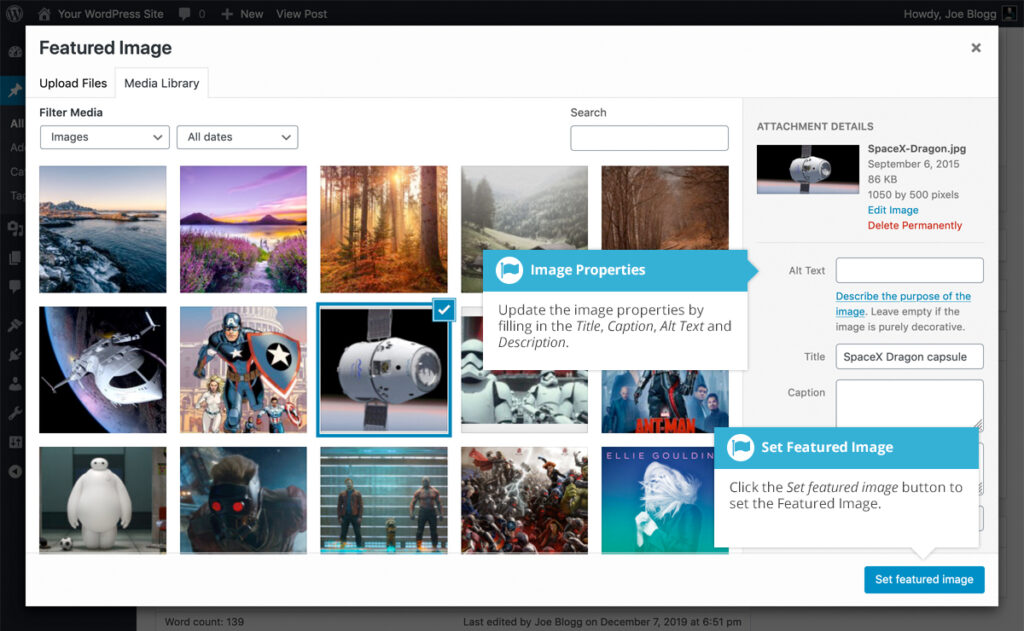

A Featured Image is a visual representation assigned to a Page, Post (News), or Event. It serves as the primary image associated with that content item.
How Featured Images appear on your site depends on your theme and layout settings. They play a particularly important role in Events and News feeds, where they help content stand out and improve visual engagement.
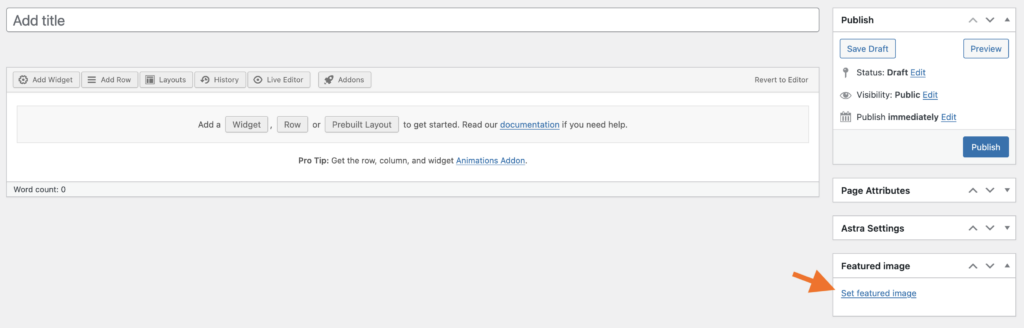
Setting your featured image is very similar to adding an image into your Page or Post. After clicking the Set featured image link a pop-up window will display that looks similar to the one that displays when you add an image to your Page/Post. You can upload a new image to use as your Featured Image or you can simply choose from one of your previously uploaded images.
By default, you’ll be shown a list of the previously uploaded images. If you’d like to upload a new image, you can either click on the Upload Files tab at the top of the pop-up window and then click the Select Files button, alternatively, simply drag ’n drop your image into the pop-up window. After clicking the image you’d like to use as your featured image you can then update the Title, Caption, Alt Text and Description. To set the image as your Featured Image, click the Set featured image button. Your chosen image will then appear in the Featured Image panel.